chezmoi 實戰:一份 dotfiles 管理三台不同用途的 Mac
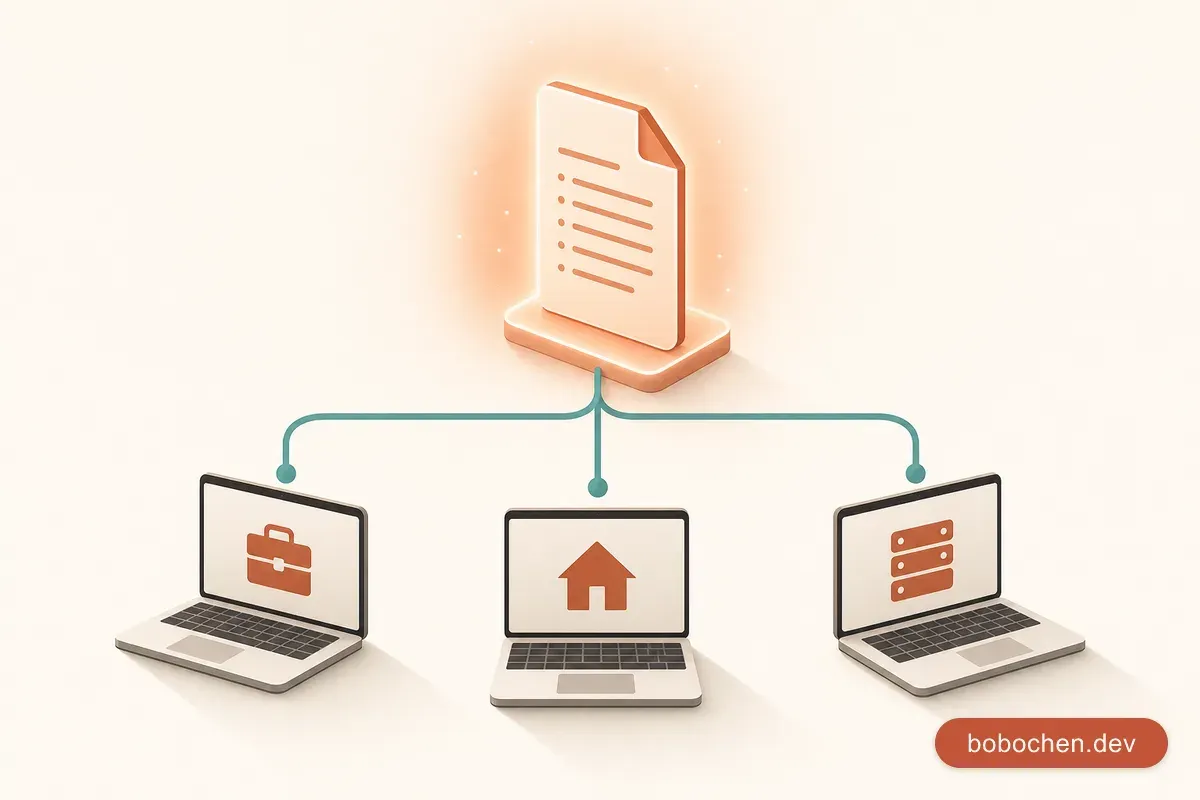
本篇是「一鍵搞定新 Mac」系列的第 7 / 9 篇。你可以從系列總覽開始閱讀,也可以直接接著看本文。
你已經有一份 dotfiles repo 了,用 symlink 或 GNU Stow 管著 .zshrc、.gitconfig 那些檔案。在一台電腦上,這套做法沒什麼問題。
但第二台電腦出現的時候,問題就來了。
手動 symlink 在多台電腦的崩潰時刻
我有三台 Mac:
| 機器 | 用途 | 差異 |
|---|---|---|
| MacBook Pro 14” | 公司開發機 | 公司 email、VPN 設定、內部工具 PATH |
| MacBook Air M3 | 個人 side project | 個人 email、部落格相關工具 |
| Mac mini | 家裡的 homelab server | 沒有 GUI app、多了 Docker 相關 alias |
三台機器 90% 的設定是一樣的(zsh 習慣、vim 設定、git alias),但那 10% 的差異讓我痛苦不堪:
.gitconfig的 email 不一樣:公司的要用bobo@company.com,個人的用bobo@gmail.com.zshrc的 PATH 不一樣:公司電腦有/opt/internal-tools/bin,個人電腦有~/.local/bin- alias 不一樣:homelab 多了一堆 Docker 快捷指令,工作機有
kubectl相關 alias - 有些設定檔根本不該出現在某些機器上:公司的 VPN config 不該存在個人電腦
用 symlink 的話怎麼辦?開 branch?太累了。用 if 判斷 hostname?散落在各檔案裡,維護是地獄。
這就是 chezmoi 要解決的問題。
chezmoi 的核心概念
chezmoi 的設計哲學很簡單:你的 dotfiles 是「原始碼」,你的 home 目錄是「編譯結果」。
這兩個概念很重要:
- Source state(原始碼):存在
~/.local/share/chezmoi/裡,就是你的 dotfiles repo。檔案可以是模板、加密檔、腳本。 - Destination state(編譯結果):就是你的
$HOME,也就是實際被使用的設定檔。
chezmoi 做的事情就是把 source state 編譯成 destination state。中間經過模板渲染、解密、條件判斷,最後才寫入你的 home 目錄。
NOTE
順帶一提:chezmoi 念作 [ʃɛ mwa](近「雪・ㄇㄨㄚ」),是法文 chez moi「我家」。難怪它的 destination state 就是你的 $HOME——工具名字本來就是「我家」。👉 名字的由來與發音
這跟 symlink 最大的不同是:實際的設定檔不是 symlink,而是真正的檔案。 所以即使 chezmoi 壞了、你把 repo 刪了,你的設定檔還是好好的在那裡。
安裝與初始化
# 安裝
brew install chezmoi

# 初始化(會在 ~/.local/share/chezmoi 建立 git repo)
chezmoi init

# 如果你已經有 dotfiles repo
chezmoi init https://github.com/your-username/dotfiles.git
把現有的設定檔加入管理:
# 加入 .zshrc
chezmoi add ~/.zshrc

# 加入 .gitconfig
chezmoi add ~/.gitconfig

# 加入整個 .config/starship.toml
chezmoi add ~/.config/starship.toml
加入之後,chezmoi 會把檔案複製一份到 source 目錄。你可以用 chezmoi cd 跳進去看:
chezmoi cd
ls -la
# 你會看到 dot_zshrc, dot_gitconfig 這些檔案
# chezmoi 用前綴來表示檔案屬性:dot_ = 以 . 開頭
模板語法實戰
這是 chezmoi 最強的地方。你可以把設定檔變成 Go template,根據每台機器的變數產生不同的內容。
第一步:設定每台機器的變數
編輯 ~/.config/chezmoi/chezmoi.toml(每台機器各自設定,不進 repo):
# MacBook Pro(公司機)
[data]
  machine_type = "work"
  email = "bobo@company.com"
  git_signing_key = "ABCDEF1234567890"

# MacBook Air(個人機)
[data]
  machine_type = "personal"
  email = "bobo@gmail.com"
  git_signing_key = "1234567890ABCDEF"

# Mac mini(homelab)
[data]
  machine_type = "homelab"
  email = "bobo@gmail.com"
你可以用 chezmoi data 確認目前機器的變數:
chezmoi data
# {
#   "machine_type": "work",
#   "email": "bobo@company.com",
#   ...
# }
實戰一:.gitconfig 根據機器填入不同 email
先把 .gitconfig 轉成模板:
chezmoi add --template ~/.gitconfig然後編輯模板:
chezmoi edit ~/.gitconfig模板內容:
[user]
  name = Bobo Chen
  email = {{ .email }}
{{ if .git_signing_key }}
  signingkey = {{ .git_signing_key }}
{{ end }}

[commit]
{{ if .git_signing_key }}
  gpgsign = true
{{ end }}

[core]
  editor = vim
  autocrlf = input

[alias]
  st = status
  co = checkout
  br = branch
  lg = log --oneline --graph --all
  unstage = reset HEAD --

[pull]
  rebase = true

{{ if eq .machine_type "work" }}
[url "git@github-work:"]
  insteadOf = https://github.com/company-org/
{{ end }}在公司電腦上,chezmoi apply 之後產出的 .gitconfig 會有公司 email 和 signing key;在個人電腦上就是個人 email。同一份模板,不同結果。
實戰二:.zshrc 根據機器載入不同的 PATH 和 alias
chezmoi add --template ~/.zshrc
chezmoi edit ~/.zshrc
# === 共用區塊 ===
export EDITOR="vim"
export LANG="en_US.UTF-8"
# Homebrew
eval "$(/opt/homebrew/bin/brew shellenv)"
# 共用 PATH
export PATH="$HOME/.local/bin:$PATH"
# 共用 alias
alias ll="ls -la"
alias g="git"
alias gs="git status"
alias gp="git push"
{{ if eq .machine_type "work" -}}
# === 公司專用 ===
export PATH="/opt/internal-tools/bin:$PATH"
export KUBECONFIG="$HOME/.kube/company-config"
alias k="kubectl"
alias kns="kubectl config set-context --current --namespace"
alias vpn-up="sudo openconnect --config=$HOME/.vpn/company.conf"
{{ end -}}
{{ if eq .machine_type "personal" -}}
# === 個人專用 ===
export PATH="$HOME/.cargo/bin:$PATH"
alias blog="cd ~/Desktop/github/bobo-blog-2026 && npm run dev"
alias deploy="cd ~/Desktop/github/bobo-blog-2026 && npm run build"
{{ end -}}
{{ if eq .machine_type "homelab" -}}
# === Homelab 專用 ===
alias dc="docker compose"
alias dps="docker ps --format 'table {{`{{`}}.Names{{`}}`}}\t{{`{{`}}.Status{{`}}`}}\t{{`{{`}}.Ports{{`}}`}}'"
alias dlogs="docker logs -f"
alias dprune="docker system prune -af"
{{ end -}}
# 共用的 zsh 設定
autoload -Uz compinit && compinit注意模板語法裡 {{- 後面的 - 是為了去掉多餘的空行。這是 Go template 的小技巧。
實戰三:用 chezmoi init 互動式設定變數
如果你不想手動寫 chezmoi.toml,可以用 .chezmoidata.toml 搭配 init 的 prompt 功能。在 source 目錄建立 .chezmoi.toml.tmpl:
[data]
  machine_type = {{ promptStringOnce . "machine_type" "Machine type (work/personal/homelab)" | quote }}
  email = {{ promptStringOnce . "email" "Git email address" | quote }}
這樣在新機器上跑 chezmoi init 時,它會互動式問你這些問題,然後自動產生 chezmoi.toml。
加密敏感檔案
dotfiles 裡總有些敏感的東西:SSH config 裡的 host 資訊、.env 裡的 API key。這些你不想明文推上 GitHub。
chezmoi 內建支援 age 加密(也支援 gpg,但 age 更簡單)。
設定 age 加密
# 安裝 age
brew install age

# 產生 key pair
age-keygen -o ~/.config/chezmoi/key.txt
# 它會輸出 public key,記下來

# Public key: age1xxxxxxxxxxxxxxxxxxxxxxxxxxxxxxxxxxxxxxxxxx
在 ~/.config/chezmoi/chezmoi.toml 加上:
encryption = "age"

[age]
  identity = "~/.config/chezmoi/key.txt"
  recipient = "age1xxxxxxxxxxxxxxxxxxxxxxxxxxxxxxxxxxxxxxxxxx"
加密 SSH config
# 把 SSH config 加入 chezmoi 並加密
chezmoi add --encrypt ~/.ssh/config
加密後的檔案在 source 目錄裡會是 private_dot_ssh/encrypted_private_config.age,看到的是亂碼。推上 GitHub 也安全。
在另一台電腦上,只要你有同一把 key.txt(可以透過 1Password 或 iCloud Keychain 安全地搬移),chezmoi apply 會自動解密。
我通常會加密的檔案
chezmoi add --encrypt ~/.ssh/config
chezmoi add --encrypt ~/.config/gh/hosts.yml    # GitHub CLI token
chezmoi add --encrypt ~/.npmrc                  # npm registry token
多機器工作流程
日常操作其實就三個步驟,非常順暢:
在 A 電腦改設定
# 1. 編輯設定檔(chezmoi 會開你的 $EDITOR)
chezmoi edit ~/.zshrc

# 2. 預覽差異(不會真的套用)
chezmoi diff

# 3. 確認沒問題,套用到 home 目錄
chezmoi apply

# 4. 推上 repo
chezmoi cd
git add -A
git commit -m "feat: add docker aliases for homelab"
git push
在 B 電腦同步
# 一行搞定:git pull + apply
chezmoi update就這樣。chezmoi update 會自動 git pull 然後重新套用所有設定。因為每台機器有自己的 chezmoi.toml,模板會根據當地變數產出正確的內容。
如果你想先看看會改什麼
# 只 pull,不 apply
chezmoi git pull

# 看看差異
chezmoi diff

# 確認後再 apply
chezmoi apply
常見踩坑
踩坑一:忘記 chezmoi add 新檔案
這是最常犯的錯。你直接編輯了 ~/.zshrc,改完很開心,結果下次 chezmoi apply 又被覆蓋回去。
正確做法:永遠用 chezmoi edit 編輯,或者改完之後用 chezmoi re-add 把變更收回 source:
# 手動改了 ~/.zshrc 之後
chezmoi re-add ~/.zshrc
# 這會把 destination 的變更反向同步回 source
也可以用 chezmoi merge 做三方合併,但大多時候 re-add 就夠了。
踩坑二:模板語法錯誤
模板寫錯的時候,chezmoi apply 會直接噴錯,但錯誤訊息有時不太直觀。
debug 技巧:用 chezmoi execute-template 測試模板片段:
# 測試一段模板語法
echo '{{ if eq .machine_type "work" }}work mode{{ else }}personal mode{{ end }}' | chezmoi execute-template

# 測試整個檔案
chezmoi execute-template < ~/.local/share/chezmoi/dot_zshrc.tmpl

# 查看某個檔案 apply 後的結果(不寫入)
chezmoi cat ~/.zshrc
常見的模板錯誤:
# 錯:忘記 end
{{ if eq .machine_type "work" }}
something
# 對:
{{ if eq .machine_type "work" }}
something
{{ end }}

# 錯:字串沒加引號
{{ if eq .machine_type work }}
# 對:
{{ if eq .machine_type "work" }}
踩坑三:macOS 更新後 defaults 被重設
macOS 大版本更新有時會重設一些系統偏好設定。這不是 chezmoi 的問題,但你可以用 chezmoi 的 run_ script 來處理。
在 source 目錄建立 run_onchange_macos-defaults.sh.tmpl:
#!/bin/bash
# chezmoi:template:hash
# macOS defaults — 每次內容變更時重新執行

# Dock
defaults write com.apple.dock autohide -bool true
defaults write com.apple.dock tilesize -int 48

# Finder
defaults write com.apple.finder AppleShowAllFiles -bool true
defaults write com.apple.finder ShowPathbar -bool true

{{ if eq .machine_type "work" }}
# 公司電腦額外設定
defaults write com.apple.screensaver askForPassword -int 1
defaults write com.apple.screensaver askForPasswordDelay -int 0
{{ end }}

killall Dock Finder
run_onchange_ 前綴表示只有腳本內容變更時才重新執行。加上 chezmoi:template:hash 確保模板渲染後的結果被 hash,而不是模板本身。
我的 chezmoi 目錄結構
~/.local/share/chezmoi/
├── .chezmoi.toml.tmpl              # init 時的互動問答
├── .chezmoiignore                  # 忽略規則(可用模板!)
├── dot_zshrc.tmpl                  # .zshrc 模板
├── dot_gitconfig.tmpl              # .gitconfig 模板
├── dot_vimrc                       # .vimrc(不需要模板,三台都一樣)
├── private_dot_ssh/
│   ├── encrypted_private_config.age # SSH config(加密)
│   └── config.d/                    # SSH config 片段
├── dot_config/
│   ├── starship.toml               # Starship prompt 設定
│   ├── private_gh/
│   │   └── encrypted_hosts.yml.age # GitHub CLI token(加密)
│   └── karabiner/
│       └── karabiner.json          # 鍵盤改鍵
├── run_onchange_macos-defaults.sh.tmpl  # macOS 系統偏好
├── run_onchange_install-packages.sh.tmpl # Brewfile 安裝
└── .chezmoiignore
.chezmoiignore 也可以用模板語法,根據機器類型忽略不同檔案:
README.md
LICENSE

{{ if ne .machine_type "work" }}
# 非工作機不需要這些
dot_config/private_vpn
{{ end }}

{{ if eq .machine_type "homelab" }}
# homelab 不需要 GUI 相關設定
dot_config/karabiner
{{ end }}
從 symlink 遷移到 chezmoi
如果你目前用 GNU Stow 或手動 symlink,遷移很簡單:
# 1. 初始化 chezmoi
chezmoi init

# 2. 把現有的設定檔加入
chezmoi add ~/.zshrc
chezmoi add ~/.gitconfig
chezmoi add ~/.vimrc
chezmoi add ~/.config/starship.toml

# 3. 刪除舊的 symlink(chezmoi add 已經複製了真實檔案)
# stow -D your-stow-package

# 4. 把需要差異化的檔案轉成模板
chezmoi chattr +template ~/.zshrc
chezmoi chattr +template ~/.gitconfig

# 5. 編輯模板,加入條件判斷
chezmoi edit ~/.zshrc
值不值得?
老實說,如果你只有一台電腦,chezmoi 有點 overkill。純 Git + symlink 就很夠了。
但如果你有兩台以上的機器,或是你的設定檔需要根據環境有差異,chezmoi 的 template 系統和加密功能真的會讓你的生活輕鬆很多。我的使用體感:
- 初始設定時間:大約 1-2 小時(把現有 dotfiles 遷移過去)
- 日常維護時間:接近零(改設定 →
chezmoi edit→ push → 另一台chezmoi update) - 新機器 setup 時間:
chezmoi init --apply your-repo一行搞定
投資報酬率?以我三台電腦的使用頻率來說,大概第二週就回本了。